Rent a VR Headset or a Family Playground It's fun, it's unreal, it's out of this world!

Get ready to step into something unreal.

Rentals

Pick your experience

About Virtuality.

Two ways to play, both picked up near you and brought home for the day.

VR Headset

All-in-one VR headsets

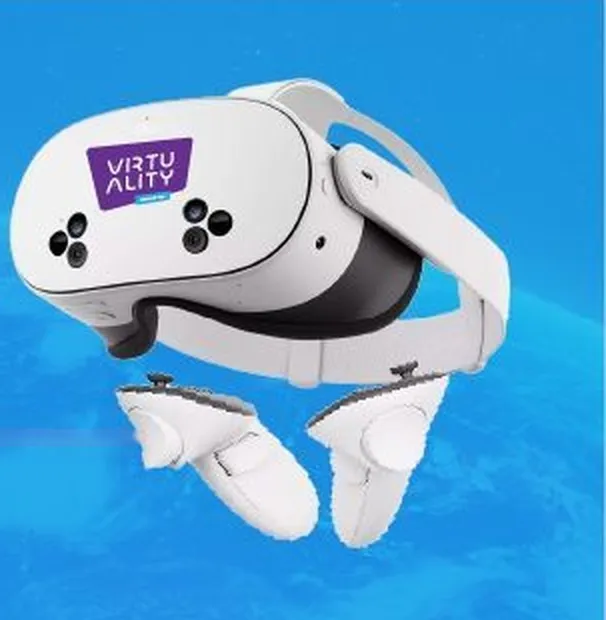
Virtuality is your go-to source for renting all-in-one VR headsets: no screens, no internet, no setup. Just UNREAL FUN for kids, teens and adults, with 35 preloaded games like racing, mountain climbing, roller coasters and sports. Wireless, motion-controlled and safe for the whole family.

35preloaded games
About 3 hrsbattery, plus a 2–3 hr backup pack
8+recommended age
0Wi-Fi, screens or computers needed

Virtuality Family Playground

The whole family plays together

Turn any wall into a giant game world. Our projector shines the game life-size onto your wall, and a smart camera follows every move. No headsets, no controllers, no internet. Just jump, dance, race and laugh together.

40–50games included
Up to 4players per game
Projectorshines the game onto your wall
Nothingto wear or hold, no internet needed

Available Pickup Locations
Pickup only. Call your location for exact directions.

The more people, the more fun!

Ask us about our special group rates and packages, perfect for birthdays, camps, schools, events, and family gatherings. We bring the VR experience to you, complete with setup, equipment, and a live instructor to guide the group through all the action.

SchoolsCampsReunionsBirthdaysGroups

There's fun… there's more fun… and then there's Virtuality level fun. It's literally unreal fun.

Fun for the entire family!

Some of the games included for use on our devices.

VR headset games Tap a game to see it played inside the headset

Family Playground games The games on our Playground, all loaded. Tap one to see it played

All game titles are property of their respective owners. Virtuality is not affiliated with or endorsed by any of the games or publishers listed.

What families say

Contact Us

Reach out for a fun filled day. Need more information? Have some questions? Send us a message and we will get back to you as soon as possible.

Book Your Rental

  1. 1Location
  2. 2Devices
  3. 3Days
  4. 4Your details
  5. 5Card & reserve

1 Pick your pickup location

2 Choose your devices

VR Headset

35 games, wireless, no Wi-Fi needed. Up to 8 per booking.

Virtuality Family Playground

40–50 games on a projector, up to 4 players per game. Up to 4 per booking.

3 Pick your days

4 Your details

We email your confirmation here.

How will you pay?

Cash and check pay the cash price. Credit card pays the card price.

5 Card & reserve

Credit card for security

A card is required to hold your reservation, even if you pay another way. If you pay by card, you are charged only after pickup. There is no security fee unless a device is damaged.

Already booked?

To change or cancel, use the link in your confirmation email. If you can't find it, please call your pickup location. The phone numbers are in the Locations section of the front page.

How to use your rental

Watch the short video for your rental before you start, or scroll down for the step-by-step pictures. Tap a video to watch it big, with pause and play.

VR Headset – How to use your rental

Family Playground – Projector setup

Game list & how to play
Every game on the headset and the Playground, how it starts, and a short video for each.

VR Headset – step by step

  1. 1Before you start

    No Wi-Fi needed. Everything is already on the headset. Clear a space about two big steps in every direction and move toys, chairs and anything on the floor out of the way.

    Your headset and its two controllers. Each headset stays with its own two controllers.
    Your headset and its two controllers. Each headset stays with its own two controllers.
  2. 2Turn it on

    Hold the power button on the left side of the headset for about 3 seconds until you hear the sound. The ring on the controllers lights up when you press any button.

  3. 3Put it on

    Loosen the straps, put the headset on, then tighten the side straps and the top strap until the picture is steady. Slide the lenses closer together or further apart until the words look sharp.

  4. 4The battery and the battery pack

    The headset plays for about 2 to 3 hours on its own. We give you a battery pack: keep it plugged into the headset while you play and it lasts much longer. To charge the headset, use a fast USB-C charger (USB-C to USB-C is best). Try to charge before it is empty; once empty, about an hour on a good charger gives you around 30%. Charge the battery pack on the wall at the same time, then plug it back in and keep playing.

  5. 5The boundary (your safe play area)

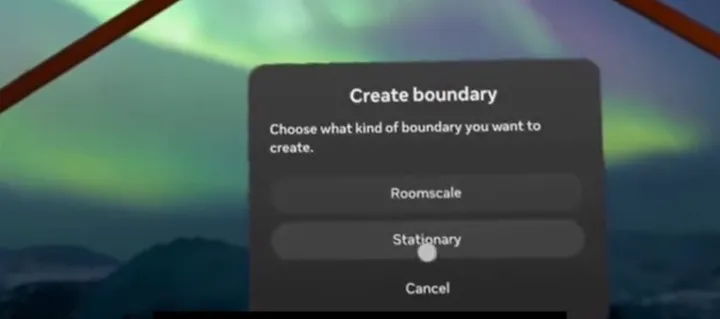
    The first time you put it on, the headset asks you to make a boundary. Pick Roomscale if you have space to walk, or Stationary to play standing in one spot.

    The boundary screen inside the headset: Roomscale or Stationary.
    The boundary screen inside the headset: Roomscale or Stationary.
  6. 6Check the floor

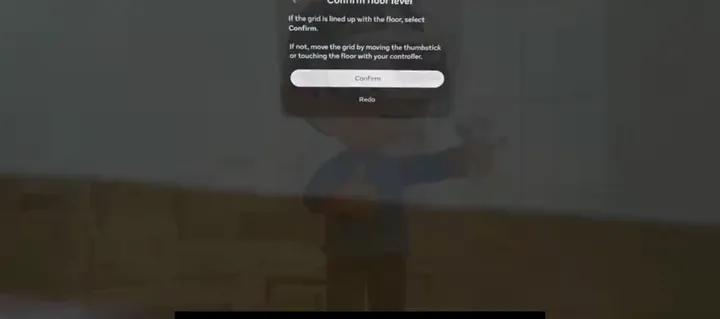
    Look down. The headset shows a grid on the floor. If it sits on the floor, tap Confirm. If it floats, touch the floor with a controller.

    Confirming the floor height inside the headset.
    Confirming the floor height inside the headset.
  7. 7Draw your play area

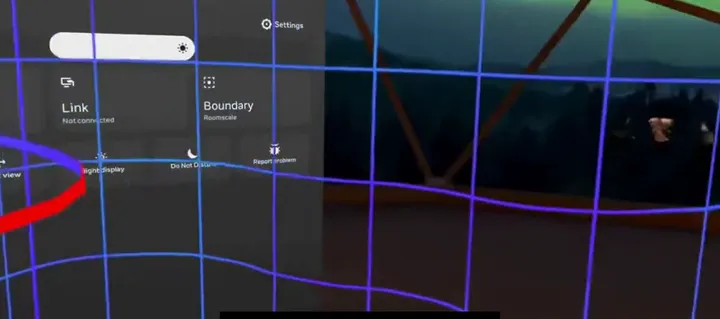
    Point a controller at the floor, hold the trigger and draw a line around your clear space, close to the walls, in straight lines. Then tap Confirm. When you get near the line while playing, a grid wall appears so you stop.

    The grid wall shows when you reach the edge of your play area.
    The grid wall shows when you reach the edge of your play area.
  8. 8Play a game

    Press the Meta button on the right controller to open the menu, pick a game from the library and press the trigger. To see your real room at any time, double-tap the side of the headset.

  9. 9Turn it off and pack

    Hold the power button until the screen goes off. Put the headset, its two controllers, the charger and the battery pack back in the bag together.

Family Playground – step by step

  1. 1What is in your rental

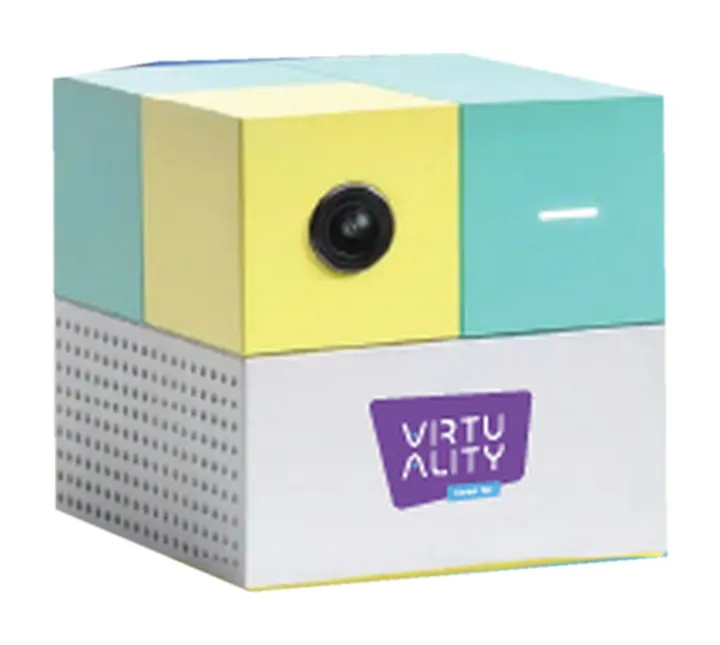
    The Family Playground (the cube with the camera on the front), its remote, the projector, the HDMI cable and the power cables.

    The Family Playground. The camera on the front watches the players.
    The Family Playground. The camera on the front watches the players.
  2. 2Place everything

    Put a small table in the middle of the room. The projector and the Playground go on the table, pointed at a blank wall or a screen a few steps away. The camera on the Playground faces the players, not the wall. Leave about 10 feet of open floor between the camera and the players.

  3. 3Plug in and turn on

    Plug the projector and the Playground into the wall. Connect the HDMI cable from the Playground's HDMI port to the projector's HDMI port. Turn on the projector (power button on the projector or its remote), then turn on the Playground.

  4. 4Choose HDMI on the projector

    On the projector remote press Source or Input, pick HDMI and press OK. This is the number one thing people forget. No Wi-Fi needed.

  5. 5Make the picture sharp and straight

    Turn the focus ring until the picture is sharp. Move the projector closer or further for size. If the picture is slanted, use Keystone on the projector menu.

  6. 6Check the camera and the room

    Take the cover off the camera and make sure it faces the players. Dim the lights a little so the wall is bright.

  7. 7Pick a game

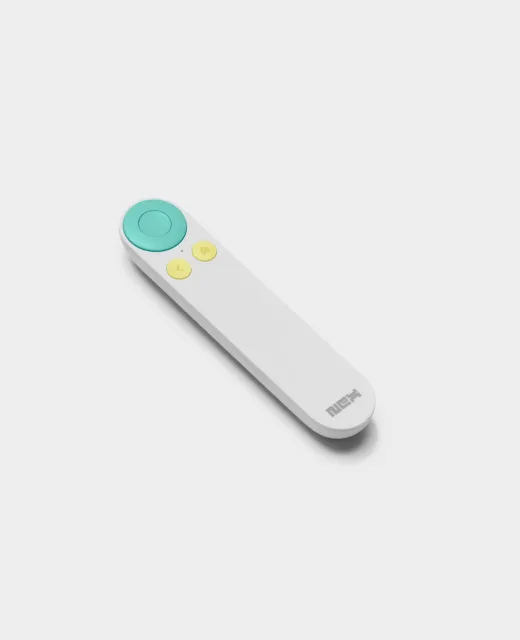
    Use the Playground remote to choose a game and press the big button to start. Your body is the controller: jump, swing and dance in front of the camera.

    The Playground remote.
    The Playground remote.
  8. 8Turn off and pack

    Put the Playground to sleep with the remote, press the projector's power button twice and let it cool for a minute before unplugging. Pack everything back together.

Game list & how to play
Every game on the headset and the Playground, how it starts, and a short video for each.

Q&A

Questions? We've got answers.

Questions? Call the pickup location on your booking confirmation.

All our games

Every game on our VR headsets and on the Family Playground. Tap any game to see how it starts and how to play, with a short video.

VR headset games

Family Playground games

All game titles are property of their respective owners. Virtuality is not affiliated with or endorsed by any of the games or publishers listed.

Back office

Sign in

For Virtuality owners and location staff.